
One of my favorite browser extensions is Improve YouTube (also was known as ImprovedTube), which I've found to be the best in optimizing YouTube to my liking.
This extension has many functions, my favorite ones are Playback Quality, Player Size Volume and Shortcut keys.
- Playback Quality: Set it your preferred quality and it will play the selected resolution automatically when available.
- Volume: Set the video to always play at the same volume.
- Player Size: For low video resolutions, matching the player size to the video quality helps maintain clarity and prevents the video from being stretched to fit the default player size.
- Shortcut keys: I use this to map some keys to quickly change video quality, for example alt+1 for 1080p, alt+2 for 720p, etc.
How To Always Play Preferred Quality On Youtube And Stop Auto-quality
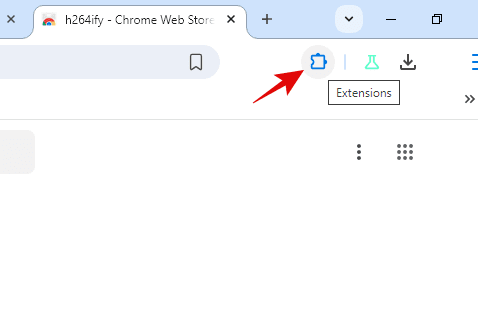
To set preferred resolution, open Improved Youtube! by clicking the Extension icon at the top right of your browser as shown in the picture below.

After opening Improved Youtube!, click on 'Player' and then in the next page, scroll down to find 'Quality' setting.
Choose your favorite resolution and this will stop Youtube from defaulting to Auto Quality every time you click on a new video. Don't forget to pin Improve Youtube! for quick access!

Read also:
Watch Multiple Youtube Videos at the same time
When watching a collaboration of live streamers and we want to watch their point of view (POV) at the same time, the usual way would be to open multiple browser windows (not tabs) and load up YouTube in each one.
However, doing this can really slow down our PC and make it lag, especially on a low-spec PC. Additionally, we then have to deal with arranging all those windows so they don't overlap.
Well, there’s a better way! You can watch all your videos in just one browser using this cool site called YouTube Multiplier. It lets you open up to 8 videos at the same time!
Just copy the YouTube links and paste them into the empty boxes (check out the image below for reference). You can also choose how you want to arrange the videos. Just remember to add a title for your mashup before you publish and share it with your friends!

